When there is a discrepancy between forecasts and actuals (positive or negative), you may defer/roll Non-actual Forecasts to later dates.
This rolling option is available in analysis mode for one selected discrepancy of for all the discrepancies within a step. You may roll discrepancies completely or partially.
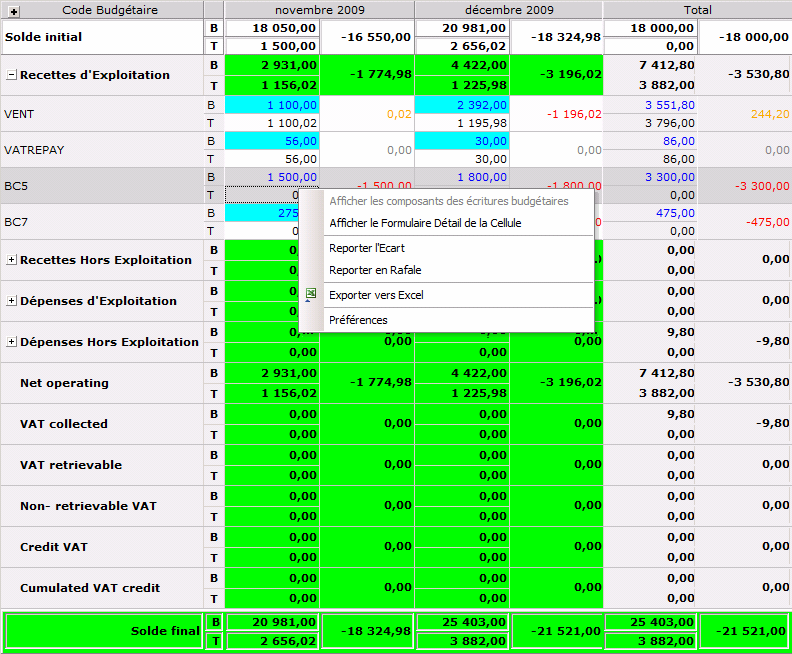
The following screenshot shows the budget sheet and the contextual menu which is displayed when you right-click a budget item. In this menu, two options enable you to defer Non-actual Forecasts individually or by batch.
Important
The discrepancy rolling process depends on the periodic division selected in the budget sheet filter. As Transactions are grouped by period steps, the more appropriate the periodic division is, the more relevant the deferment dates are.
 Rolling Discrepancies
This procedure deals with individual rolling of Non-actual Forecasts.
- Display the budget sheet in analysis mode.
For more information on the analysis mode configuration, see the procedure for analysis mode activation in topic Budget Sheet Entry and Analysis.
- Right-click the discrepancy or the budget amount to select, and in the new contextual window, click Roll Discrepancy.
The page for individual rolling is displayed, presenting in its header the discrepancy amount in the exercise currency and the exercise currency code.
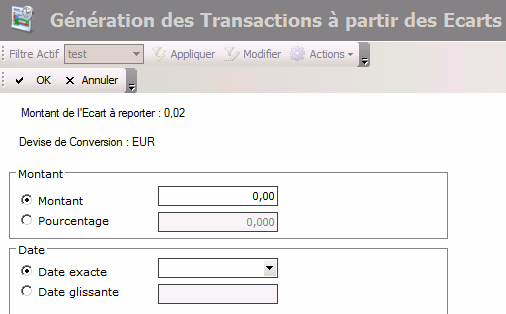
This page enables you to roll the selected discrepancy completely or partially.
- In the Amount area, enable the Amount option to enter the amount to roll, or the Percentage option to enter rolling portions, then, in the entry field facing the selected option, enter the corresponding value.
The amount to roll is expressed in the exercise currency. It must be lower than or equal to the discrepancy amount.
Likewise, the rolling percentage must be lower than or equal to 100%.
- In the Date area, select Exact Date to enter the transaction date of the rolled amount, or Rolling Date to enter the rolling duration.
- If you selected:
- Exact Date, enter a date in the entry field or use the calendar (click here for more information on how to use the calendar),
- Rolling Date, enter a rolling duration as described in topic Defining Dates.
For example, DATE+2M corresponds to a two-month rolling duration after the initial transaction date.
Important
The rolling date must fall after today's date.
Info
If the deferment date falls after the step of the current budget exercise, the new budget transaction is not automatically generated. To create the transaction resulting from the rolling, after validating the rolling process, you need to update every following exercise until the relevant exercise. For more information on the exercise update from previous exercises, see topicBudget Planning.
- Click OK to save your setup.
The page for rolling validation is displayed, presenting the characteristics of the transaction generated by the rolling.
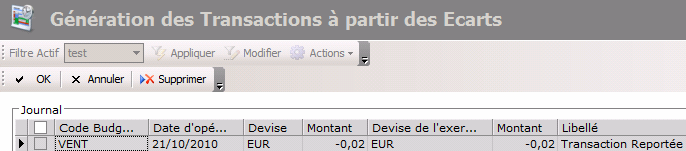
The transaction appears in a table with the following characteristics: budget code, transaction date, transaction currency and amount, exercise currency and transaction amount converted into the exercise currency, transaction description (mentioning "Rolled Transaction").
From this page, you may modify the transaction date and amount.
- To modify Transaction Dates, in the Transaction Date field, enter a date in the field or use the calendar. Click here for more information on using the Calendar.
- To modify Transaction Amounts, in the Transaction Amount field corresponding to the transaction amount in the transaction currency, enter the transaction amount and press Enter.
The transaction amount in the exercise currency is also updated by your entry.
- Select the check box corresponding to the transaction you want to generate, then click OK to validate the rolling process or Cancel.
La feuille budgétaire est ré-affichée avec la nouvelle transaction prise en compte dans le budget.
Info
One transaction is added to the budget but the initial transactions which where subject to the rolling process, are not overwritten, nor modified.
Rolling Several Discrepancies of a Step
This function enables you to roll the discrepancies observed in a same step of exercise period completely or partially.
This step depends on the selected periodic division. For example, if you selected Month as the division step, you can roll all the discrepancies observed in a same month (for example non-actual forecasts of January).
- Display the budget sheet in analysis mode.
For more information on the analysis mode configuration, see the procedure for analysis mode activation in topic Budget Sheet Entry and Analysis.
- Right-click the discrepancy or the budget amount to select, and in the new contextual window, click Roll By Batch.
The page for batch-rolling is displayed, presenting in its header the number of transactions to roll and the exercise currency.
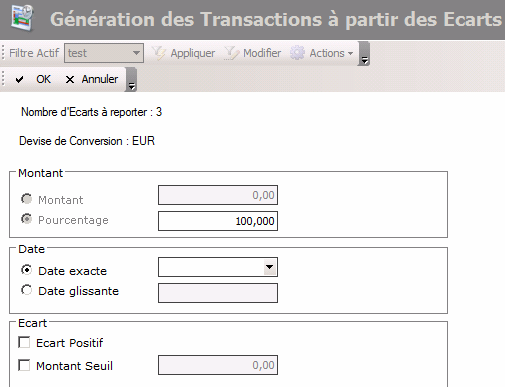
This page enables you to roll the selected discrepancies completely or partially.
- In the Percentage field of the Amount area, enter the rolling percentage value.
The percentage must be lower than or equal to 100%.
The same percentage is to be applied on all the selected budget codes. For example, if you enter 50%, half of the discrepancies total is to be rolled.
- In the Date area, select Exact Date to enter the transaction date of the rolled amounts, or Rolling Date to enter the rolling duration.
- If you selected:
- Exact Date, enter a date in the entry field or use the calendar as described in the Calendar topic,
- Rolling Date, enter a rolling duration as described in topic Defining Dates.
For example, DATE+2M corresponds to a two-month rolling duration after the initial transaction date.
Important
The rolling date must fall after today's date.
Info
If the deferment date falls after the current budget exercise, the new budget transactions are not automatically generated. To create the transactions resulting from the rolling, after validating the rolling process, you need to update every following exercise until the relevant exercise. For more information on the exercise update from previous exercises, see topicBudget Planning.
- In the Discrepancy area, select Positive Discrepancy to roll the positive discrepancies as well.
If you do not select this option, only the negative discrepancies are rolled.
- If you want to define a minimum amount for discrepancies to roll, select the Floor Amount option, then enter the minimum amount in the exercise currency.
- Click OK to save your setup.
The selection page for the transactions which are to be generated on rolling validation, is displayed.
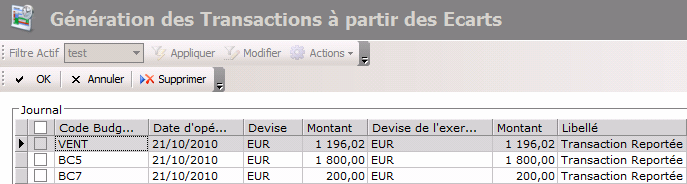
The transaction list appears in a table with the following characteristics: budget code, transaction date, transaction currency and amount, exercise currency and transaction amount converted into the exercise currency, transaction description (mentioning "Rolled Transaction" for all of these transactions).
From this page, you may modify the transaction date and amount for each transaction.
- To modify Transaction Dates, in the Transaction Date field, enter a date in the field or use the calendar as described in the Calendar topic.
- To modify Transaction Amounts, in the Transaction Amount field corresponding to the transaction amount in the transaction currency, enter the transaction amount and press Enter.
The transaction amount in the exercise currency is also updated by your entry.
- Select the check boxes corresponding to the transactions you want to generate, then click OK or Cancel.
The budget sheet is redisplayed with the new transactions.
Info
Transactions are added to the budget, but the initial transactions (i.e. your original forecasts with discrepancy) which were subject to rolling, are not modified;


